Game backgrounds / Reproducible example
Panorama to Skybox: Three.js & Unity
Use a complete 2:1 equirectangular image as a panoramic background, or convert it into six square PNG faces for a cube skybox. This walkthrough includes the source, the converted output, and a working Three.js example.
Download the source and actual conversion output
The sample is a programmatically drawn orientation chart, not an AI-generated scene or a captured HDRI. It has a labeled horizon and a continuous left/right boundary. It is useful for finding swapped or rotated faces before you import your own artwork.
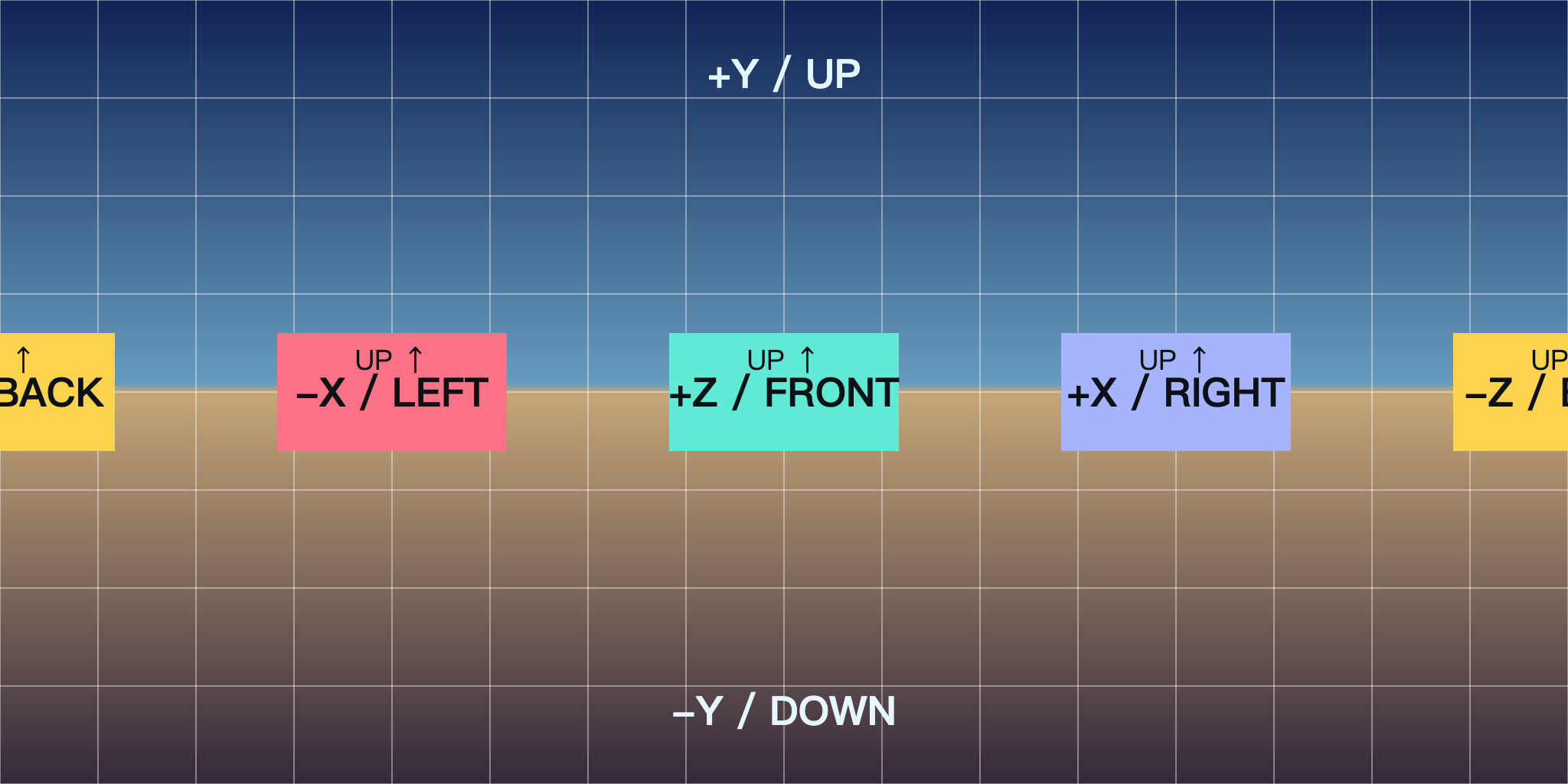
Download sample PNG Download six-face ZIP
The ZIP was exported from this PNG using the same slicer as the cubemap generator, at 512 pixels per face. It contains exactly posx.png, negx.png, posy.png, negy.png, posz.png and negz.png. The chart and its six-face export are provided under CC0; this does not change the terms for AI outputs or user uploads.
Reproduce the panorama-to-cubemap conversion
- Download the sample PNG, then open the free cubemap generator.
- Choose Upload Custom 360 Photo and select the downloaded file. Selection and slicing happen locally in the browser; this conversion does not upload your file.
- Select 512 × 512. Inspect all six preview faces. +Z should show FRONT, +X RIGHT, −X LEFT, and −Z BACK; +Y and −Y show the sky and ground.
- Choose Download All 6 Faces (ZIP) and extract the archive. Other available face sizes are 256 and 1024 pixels.
A face covers a 90° view, so its pixels do not match a rectangular crop of the input. A stretched flat photograph does not become a complete spherical panorama just because its dimensions are 2:1. Read the projection guide if your source looks distorted.
Show the original 2:1 panorama in Three.js
For a background, you can use the original panorama directly without slicing. In an existing Three.js scene, load the PNG, mark its colors as sRGB, and set its equirectangular mapping:
import * as THREE from 'three';

const panorama = await new THREE.TextureLoader().loadAsync(
  '/examples/skybox/orientation-panorama.png'
);
panorama.colorSpace = THREE.SRGBColorSpace;
panorama.mapping = THREE.EquirectangularReflectionMapping;
scene.background = panorama;The example uses the code above with a renderer, camera, resize handling and six direction buttons. It loads the sample from this site without an external CDN, account, or AI request. To reproduce the snippet in your own app, use Vite or another module bundler with three installed. A bare module import will not work by opening an HTML file directly.
If you need a cube texture instead, CubeTextureLoader expects URLs in +X, −X, +Y, −Y, +Z, −Z order. Its cube convention differs from Three.js world coordinates. Check readable landmarks and the poles before choosing a face rotation or an X-axis swap; do not assume alphabetical filename order is correct.
Use the six PNG faces in Unity
For the Built-in Render Pipeline or URP, use Skybox/6 Sided. This shader is not supported by HDRP; follow the documentation for your render pipeline.
- Extract the six-face ZIP into your Unity project’s
Assetsfolder. Keep the source PNG separate from these six files. - Select the six PNG textures. Set Wrap Mode to Clamp and apply the import settings.
- Create a Material and select the Skybox/6 Sided shader. Assign textures using the table below.
- In the Lighting window’s Environment settings, assign this material as the Skybox Material.
- Check the horizon, readable labels, and top/bottom transitions. The camera must render the skybox. If a face is wrong, check its slot and orientation before changing the source image.
| ZIP entry | Unity texture slot |
|---|---|
posx.png | Right (+X) |
negx.png | Left (−X) |
posy.png | Up (+Y) |
negy.png | Down (−Y) |
posz.png | Front (+Z) |
negz.png | Back (−Z) |
You can also skip slicing and assign the original 2:1 panorama to a Skybox/Panoramic material with latitude-longitude mapping and 360° image coverage. See Unity’s 6 Sided reference and Panoramic reference. These are import instructions; the downloadable example does not include a Unity project.
Replace the calibration chart with an AI environment
Once the import works, create artwork in the AI skybox studio or text-to-panorama tool. AI generation uses credits; these sample downloads, local viewing and cubemap conversion are free.
Example prompt to try, rather than a claim about a generated result:
A quiet science-fiction observation deck, full 360° equirectangular environment, level horizon, distant stars outside panoramic windows, consistent ceiling and floor, no text, no people, no objects very close to the camera.
Download the returned panorama and inspect its actual pixel dimensions, horizon, poles and wraparound seam in the 360 viewer. Generation time and output quality vary. Seam blending can reduce boundary differences but cannot guarantee consistent geometry or an invisible seam. Repeat the same conversion and import steps with the checked image.
What this workflow does and does not preserve
- Does the ZIP contain HDR lighting?
- No. It contains six ordinary 8-bit PNG display images. A PNG-to-HDR container conversion does not recover scene radiance. Keep a genuine HDR source for lighting; see HDRI versus LDR.
- Can I import the ZIP as an Unreal TextureCube?
- No. The ZIP is a collection of PNGs, not a TextureCube asset. Follow Unreal’s supported environment-import workflow separately.
- Does a larger face size improve the original detail?
- No. More output pixels cannot restore source detail. Check the source resolution and texture filtering when the result looks blurry.
- Why are there lines between faces?
- Check the original seam, texture slots, face rotations, clamp wrapping and filtering. A mismatched source cannot be fixed by slicing it. Use the labeled sample to distinguish an import problem from an artwork problem.